

AI-First Answer Layer (Extractable & Standalone)
To add your website to Google Search Console, create a property, choose a verification method, and confirm ownership so Google can collect search performance data for your site.
This matters because Search Console is the only tool that shows how Google actually crawls, indexes, and ranks your pages.
Fast Facts
- Google Search Console is free
- Verification proves you control the site
- Data appears only after verification
- Domain properties give the most complete data
- URL-prefix properties are easier for beginners
- Verification is usually one-time
- You can add multiple users later
- Setup does not affect rankings directly
Step-by-Step: Add Your Website
- Sign in to Google Search Console
- Click Add property
- Choose Domain or URL prefix
- Enter your website address
- Verify ownership using one method
- Confirm successful verification
- Wait for data to populate
Common Mistakes
- Adding only the non-www version
- Verifying the wrong protocol (http vs https)
- Using URL prefix when domain access is available
- Removing verification files too early
- Assuming data appears instantly
When Setup Is Not Enough
Routine setup is insufficient if:
- Pages are not being indexed
- You see crawl or manual action errors
- Traffic drops suddenly
- Important pages are excluded
At that point, Search Console must be actively monitored and configured.
What This Means in Practice
Adding your website to Search Console is not just a formality.
It establishes a direct data relationship between your site and Google.
Without it, you are guessing.
With it, you see:
- Which pages Google indexes
- Which queries trigger impressions
- Where technical issues block visibility
This is foundational SEO infrastructure.
What Is Google Search Console?
Google Search Console is Google’s diagnostic platform for website owners.
It reports on:
- Indexing status
- Search queries and clicks
- Mobile usability
- Page experience
- Core Web Vitals
- Manual penalties
No other tool replaces this data.
Domain Property vs URL Prefix Property

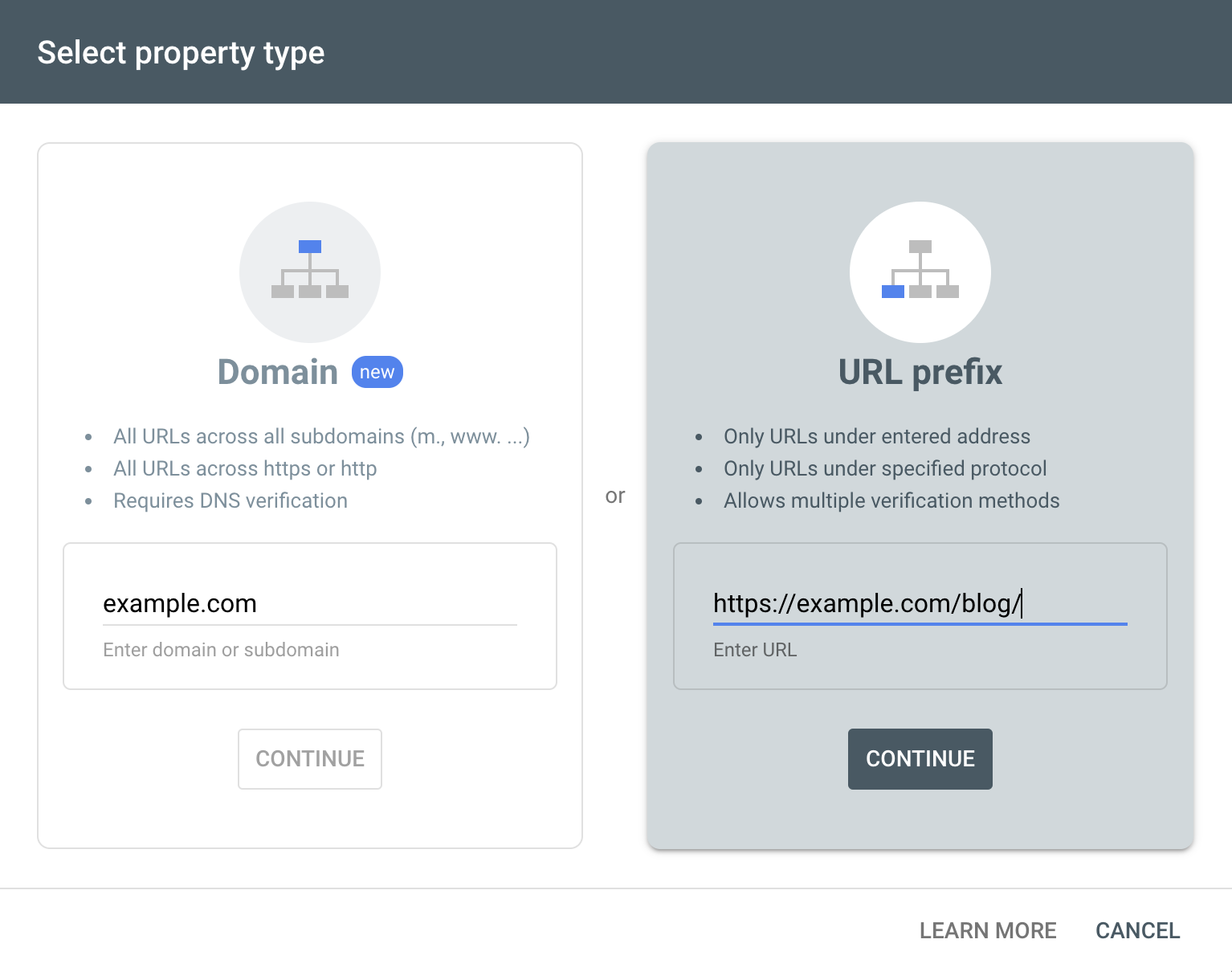
Domain Property
Covers:
- All protocols (http/https)
- All subdomains (www, m, blog)
Requirements:
- DNS access
Best for:
- Businesses
- Established sites
- Agencies
URL Prefix Property
Covers:
- One exact URL version only
Requirements:
- HTML file, tag, or plugin
Best for:
- Beginners
- Limited access environments
Decision rule:
If you control DNS, choose Domain.
If not, use URL Prefix.
How to Verify Ownership (All Methods Explained)
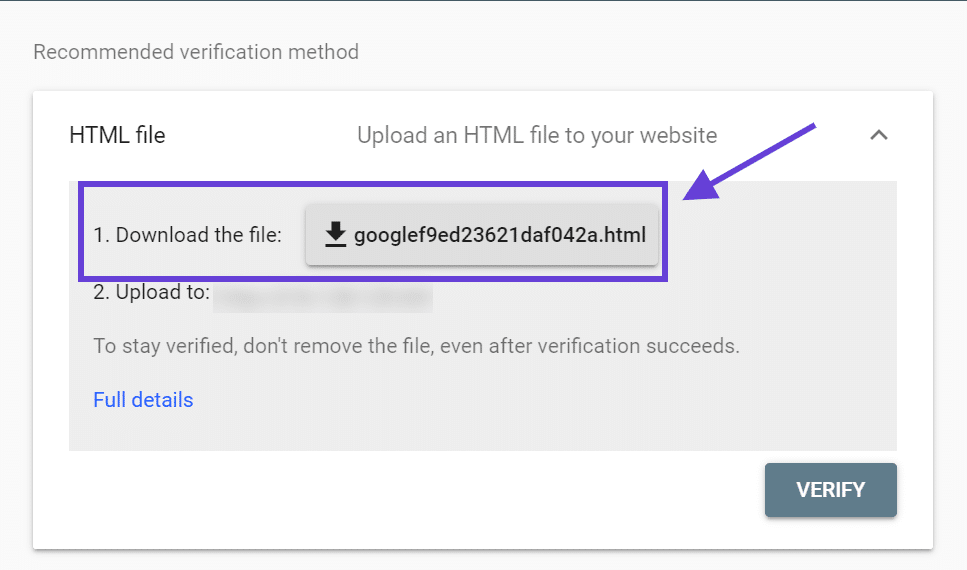
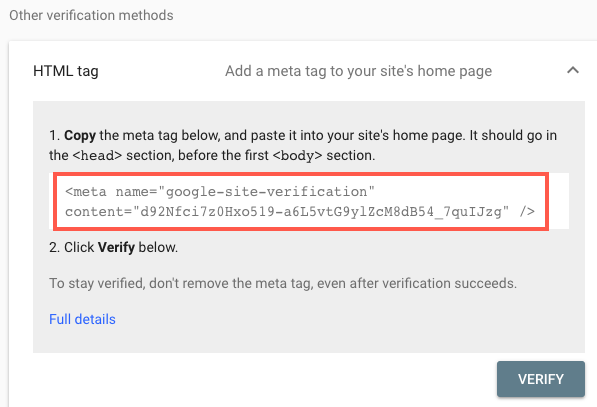
DNS Verification (Recommended)
- Add a TXT record to your domain
- Verifies all subdomains at once
- Most stable long-term method
HTML File Upload
- Upload a file to your site root
- Easy but fragile if files are removed
Meta Tag
- Add a tag to your homepage
<head> - Common with WordPress SEO plugins
Google Analytics or Tag Manager
- Works only if already installed
- Requires correct permissions
Best practice: DNS first, Meta tag second.
WordPress-Specific Setup Notes
If your site runs on WordPress:
- SEO plugins often handle verification
- Cache plugins can delay confirmation
- Page builders may strip meta tags
Always:
- Clear cache after adding verification
- Confirm the correct homepage version
How Long Before Data Appears?
- Index Coverage: 24–72 hours
- Performance reports: 48–96 hours
- Full trend data: 7–14 days
No historical data appears before verification.
This is normal.
What to Check Immediately After Setup
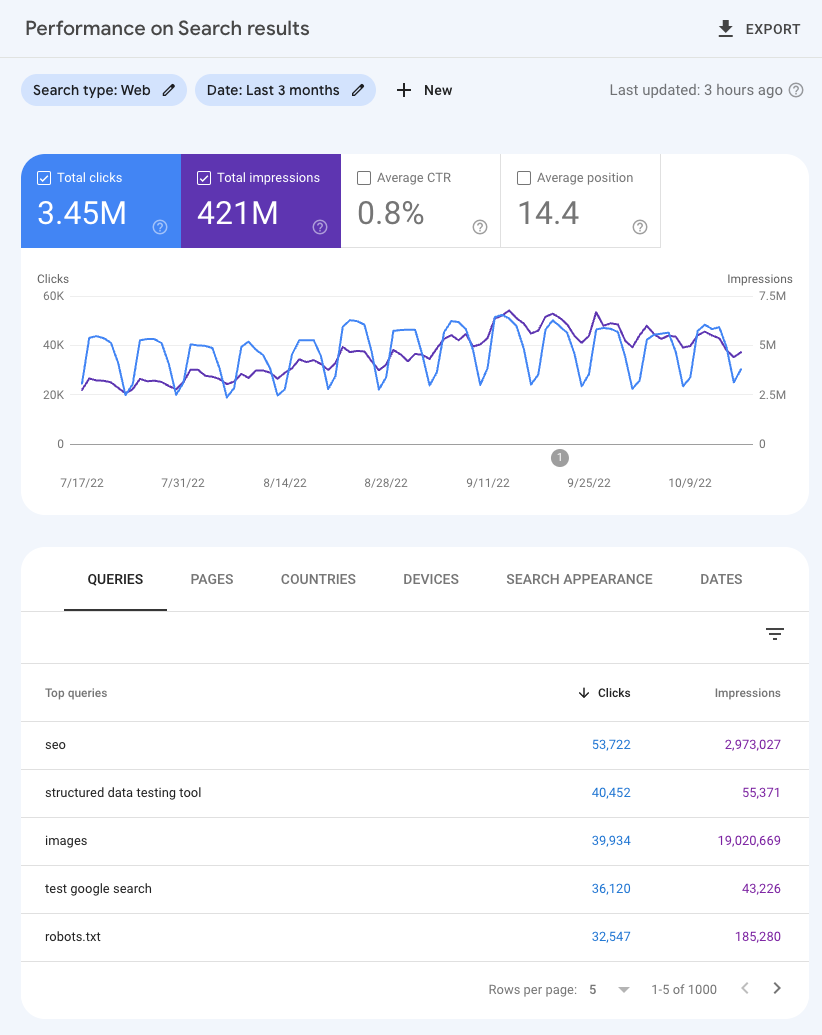

Priority checks:
- Pages report → Indexed vs Not indexed
- Manual actions → Should be empty
- Security issues → Should be clear
- Sitemaps → Submit if available
Micro-summary:
Setup is complete only when data confirms healthy indexing.
Provider Evaluation Checklist (If You Delegate This)
If someone sets this up for you, confirm they:
- Add a domain property
- Verify via DNS
- Submit a sitemap
- Add all key users
- Explain excluded pages
If they cannot explain exclusions, they do not understand Search Console.
Red Flags
- Only URL prefix added
- No sitemap submitted
- No explanation of Coverage report
- Claims setup “boosts rankings”
Search Console informs decisions.
It does not manipulate rankings.
Questions to Ask an SEO or Developer
- Which property type did you add?
- How is ownership verified?
- What pages are excluded and why?
- What errors need fixing first?
Clear answers indicate real expertise.
Conclusion
Adding your website to Google Search Console is the moment SEO stops being guesswork and starts being evidence-based.
The decision logic is simple:
- Verify the entire domain
- Confirm indexing health
- Use real Google data to guide action
Your next step is not more tools.
It is learning to read the data you now own.
FAQ (Schema-Ready)
How do I add my website to Google Search Console?
Create a property, choose domain or URL prefix, verify ownership, and confirm setup.
Is Google Search Console free?
Yes. There are no paid tiers.
Do I need both domain and URL prefix properties?
No. A domain property already includes all versions.
Why is my site verified but showing no data?
Data only appears after verification and takes several days.
Does adding my site improve rankings?
No. It provides data, not ranking boosts.
Can I add multiple users?
Yes, with full or restricted permissions.
What if verification fails?
Check DNS propagation, caching, or incorrect URL versions.